1
Open the Register page
At the top of any page, click Register in the 1 Login | Register button. You can also go straight to ambcirclefriends.com/register.
 1
Circle of Friends · Community Guides
Choose a guide below. Each one has step-by-step instructions, a short video and a PDF to download.

Circle of Friends · Community Guide
Applying for a community account, confirming your email and setting your password.
Download the PDFWatch the walkthrough
At the top of any page, click Register in the 1 Login | Register button. You can also go straight to ambcirclefriends.com/register.
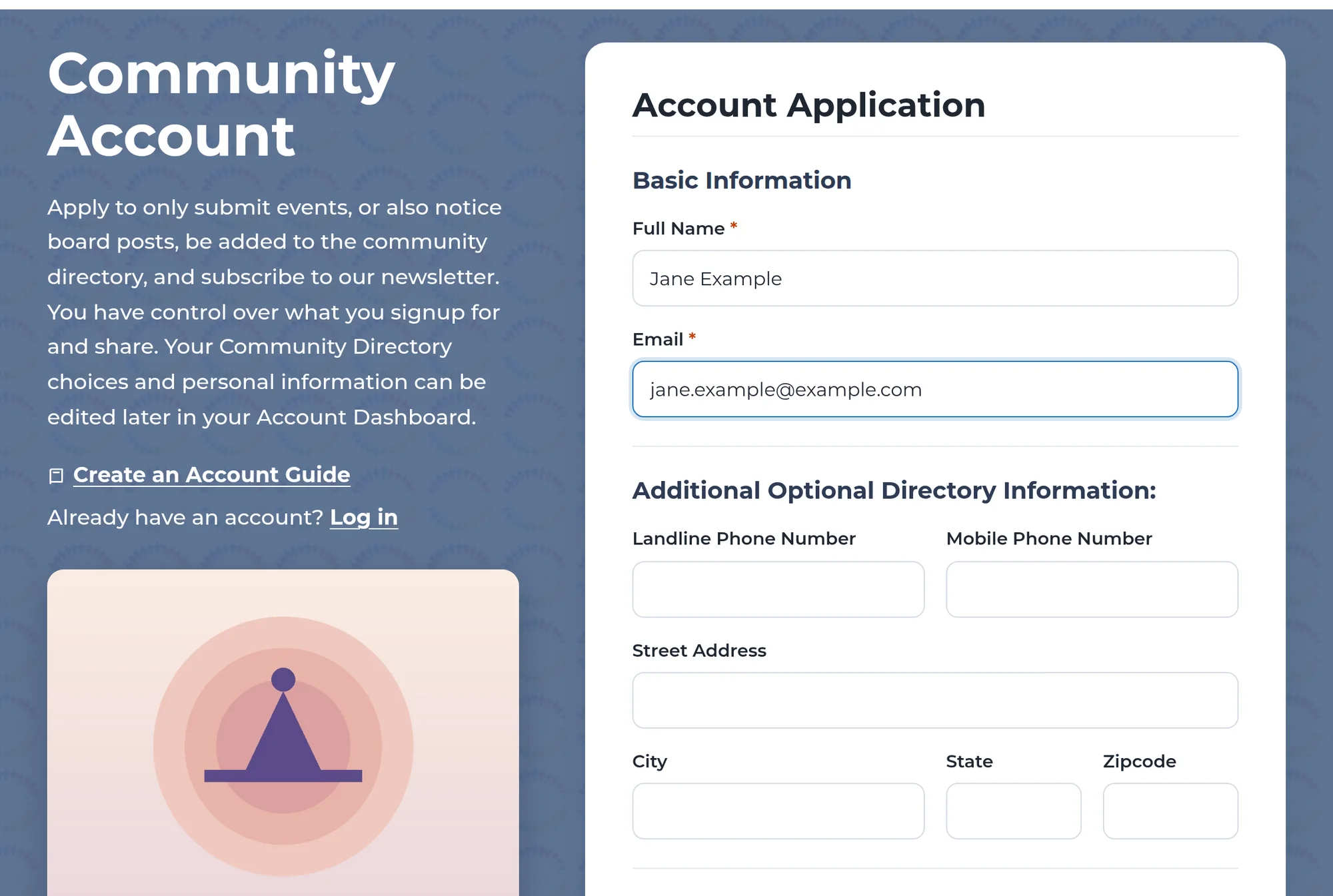
1The Account Application asks for your 2 Full Name and 3 Email. Your email address is also how you’ll log in.
Already have an account? Use the 1 Log in link instead.
 123
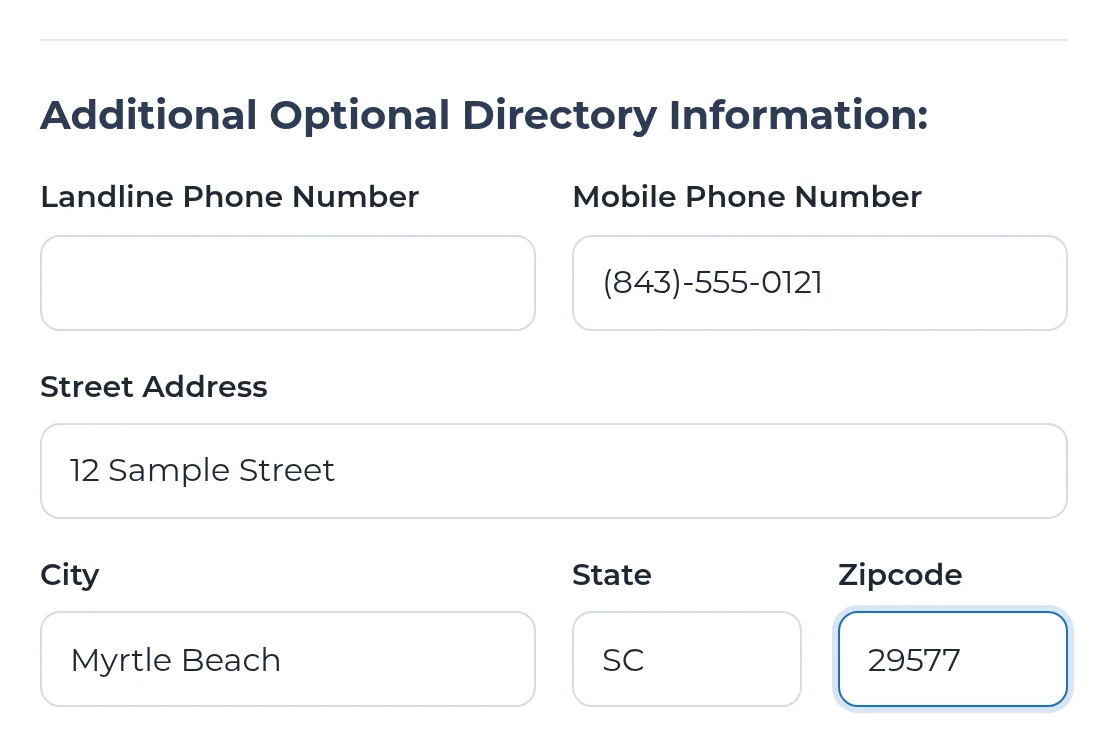
Phone numbers and your address are optional. If you apply as a Full Community Participant, you choose later in the form which of them others can see in the Community Directory.
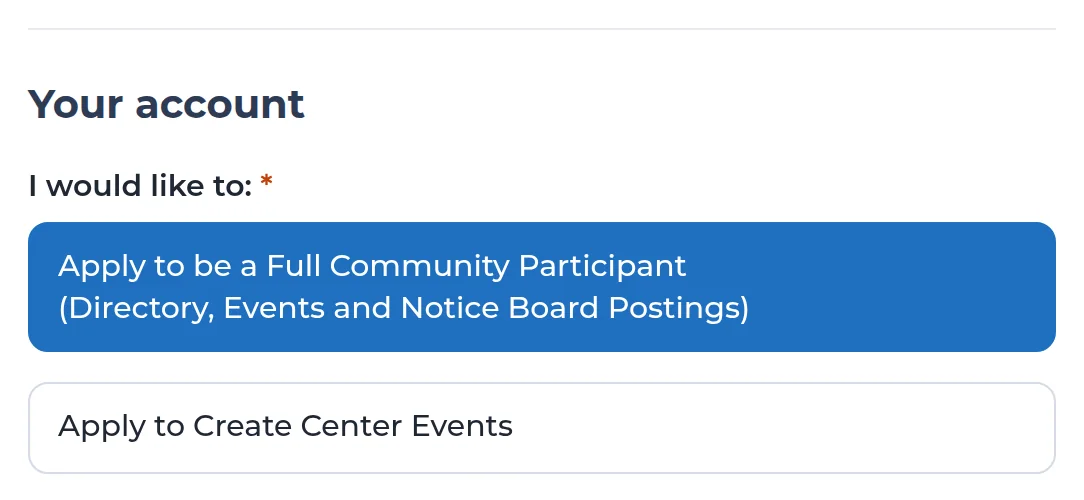
Under I would like to, choose one:
 12
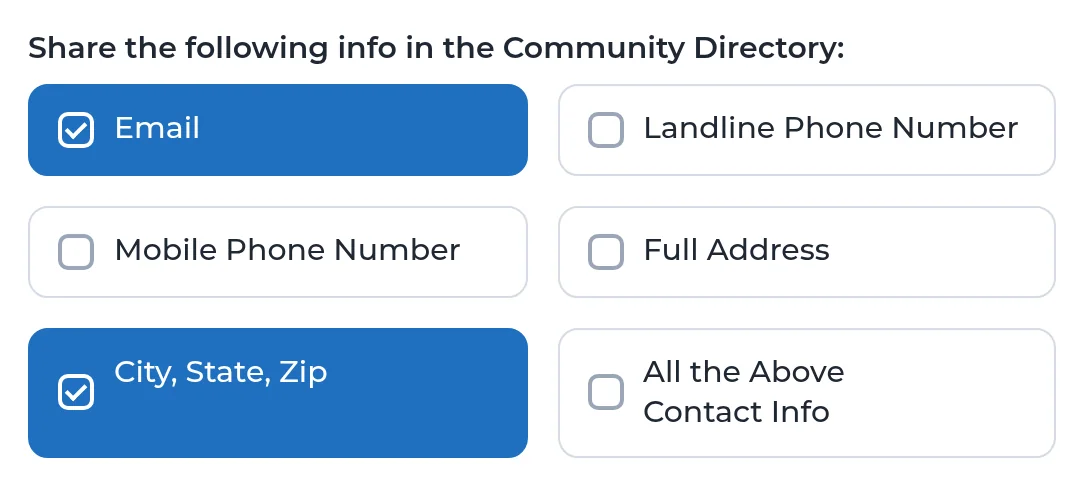
Full Community Participants choose what others can see in the Community Directory. Tick at least one.
You can change these choices at any time from your Account Dashboard.
 12
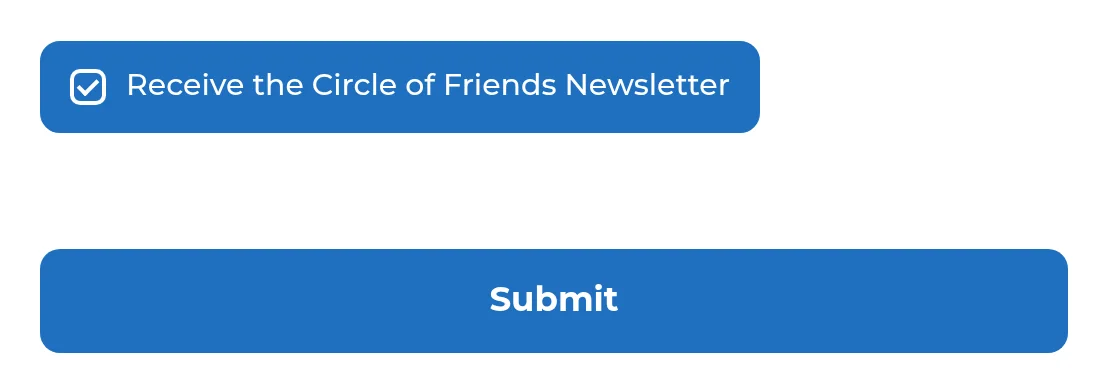
Tick 1 Receive the Circle of Friends Newsletter if you’d like it, then click 2 Submit. The page thanks you for applying.
 12
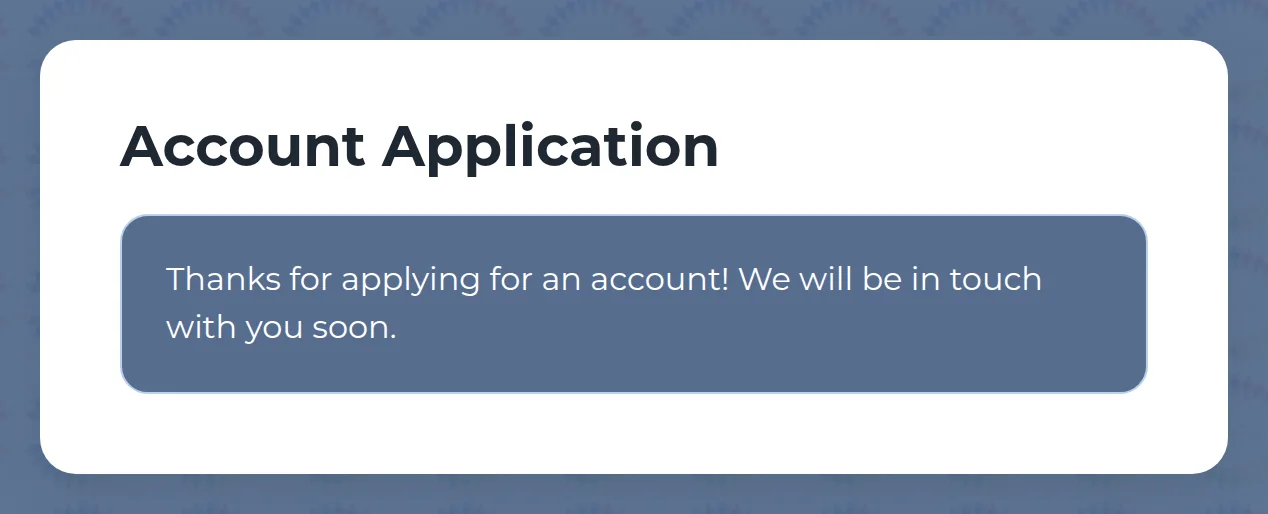
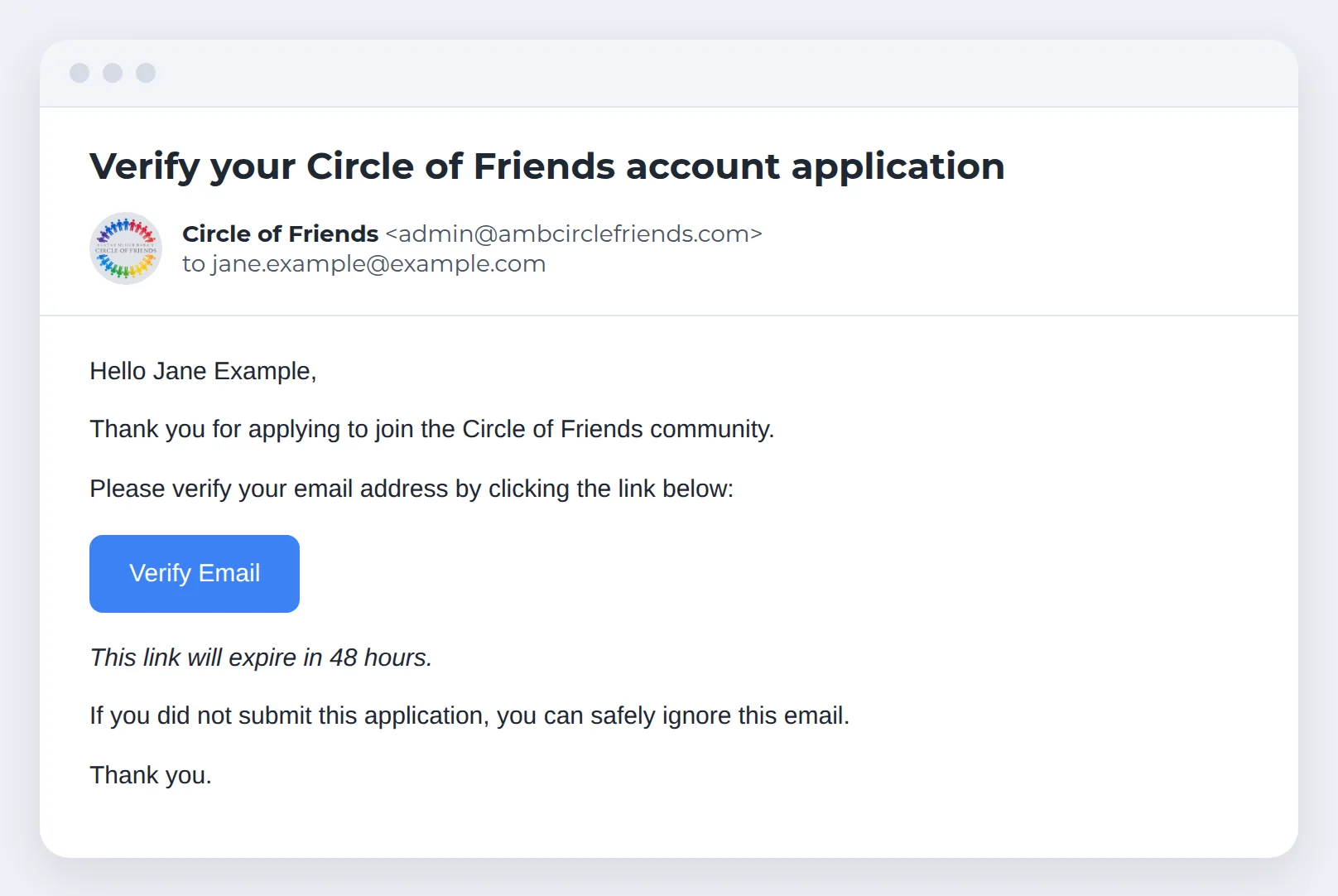
You’ll receive an email titled “Verify your Circle of Friends account application”. Click 1 Verify Email. The page confirms: “Email verified successfully! Your application is now under review.”
The link works for 48 hours. If you can’t find the email, check your spam or junk folder.
 1
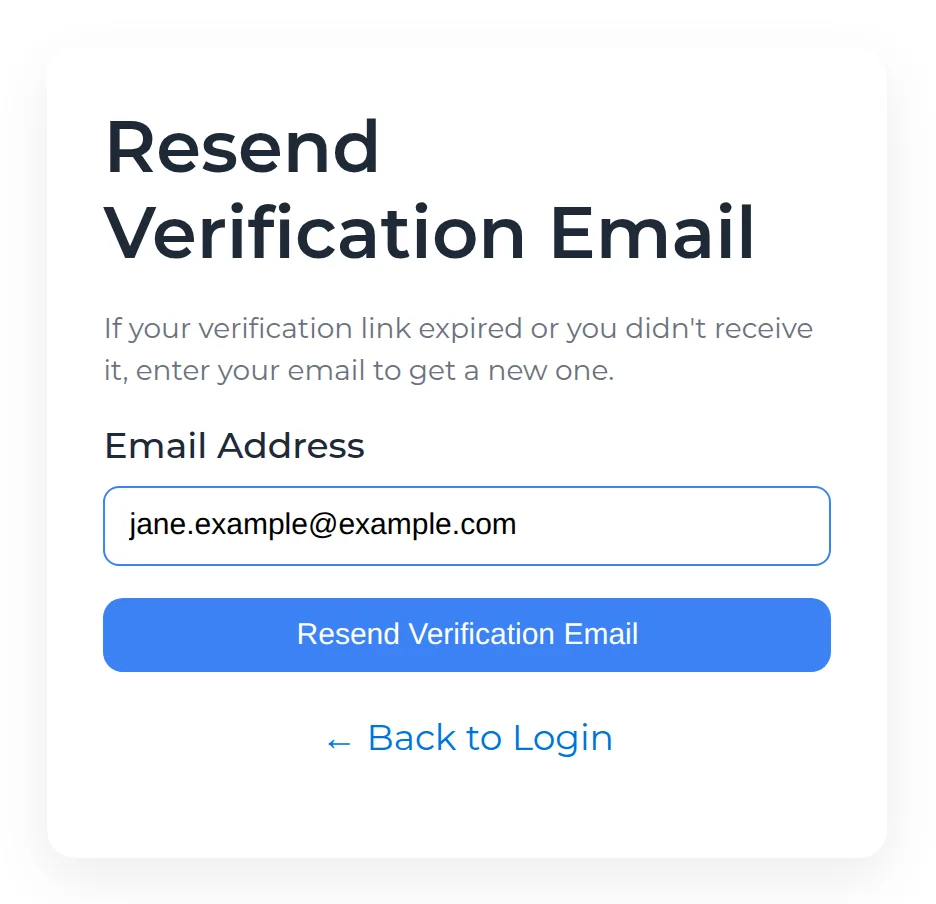
If the link has expired or the email never arrived, go to Forgot your password? on the login page. Under Resend Verification Email, enter your email address and click 1 Resend Verification Email.
 1
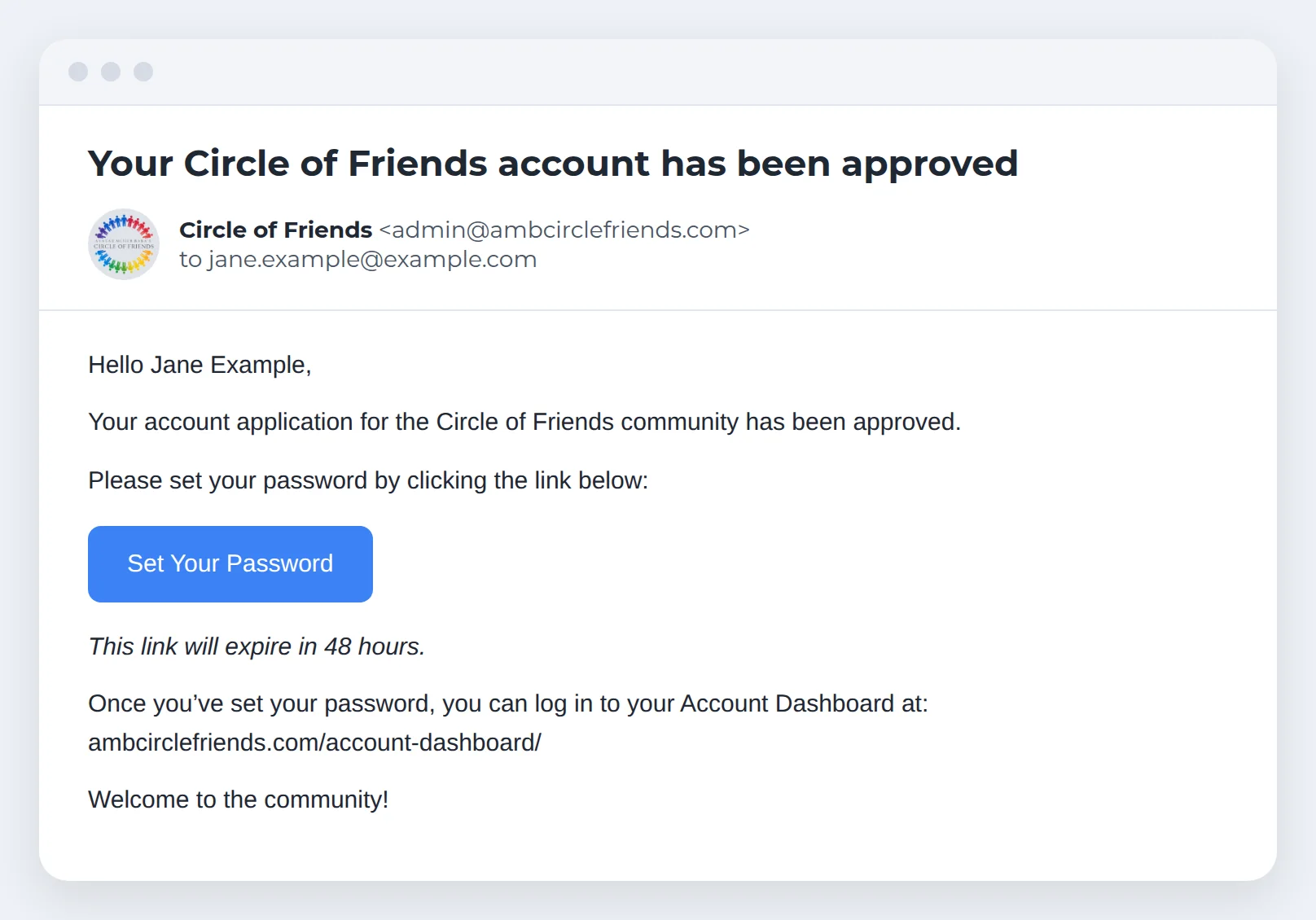
An administrator reviews your application. When it’s approved, you’ll receive an email titled “Your Circle of Friends account has been approved”. Click 1 Set Your Password.
This link also works for 48 hours. If it expires, use Forgot your password? on the login page to get a new one.
 1
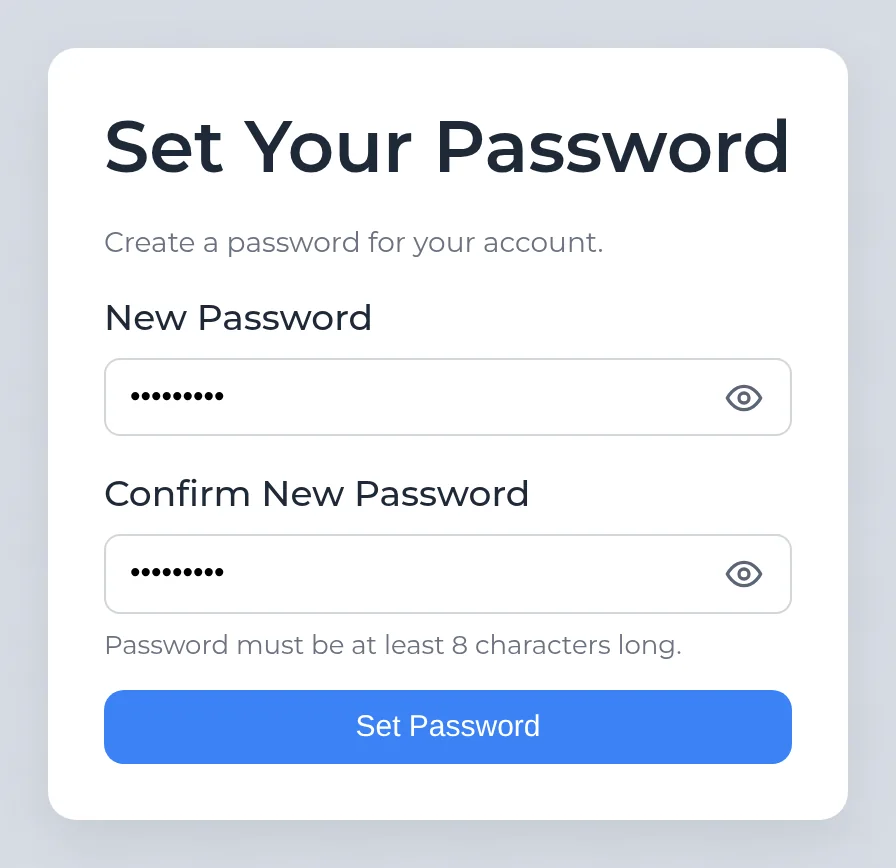
Enter a 1 New Password of at least 8 characters, type it again in 2 Confirm New Password, then click 3 Set Password. The eye icon shows what you’ve typed.
You’re all set. Log in with your email address and new password, and your Account Dashboard opens.
 123
Circle of Friends · Community Guide
Logging in, staying logged in, and resetting a forgotten password.
Download the PDFWatch the walkthrough
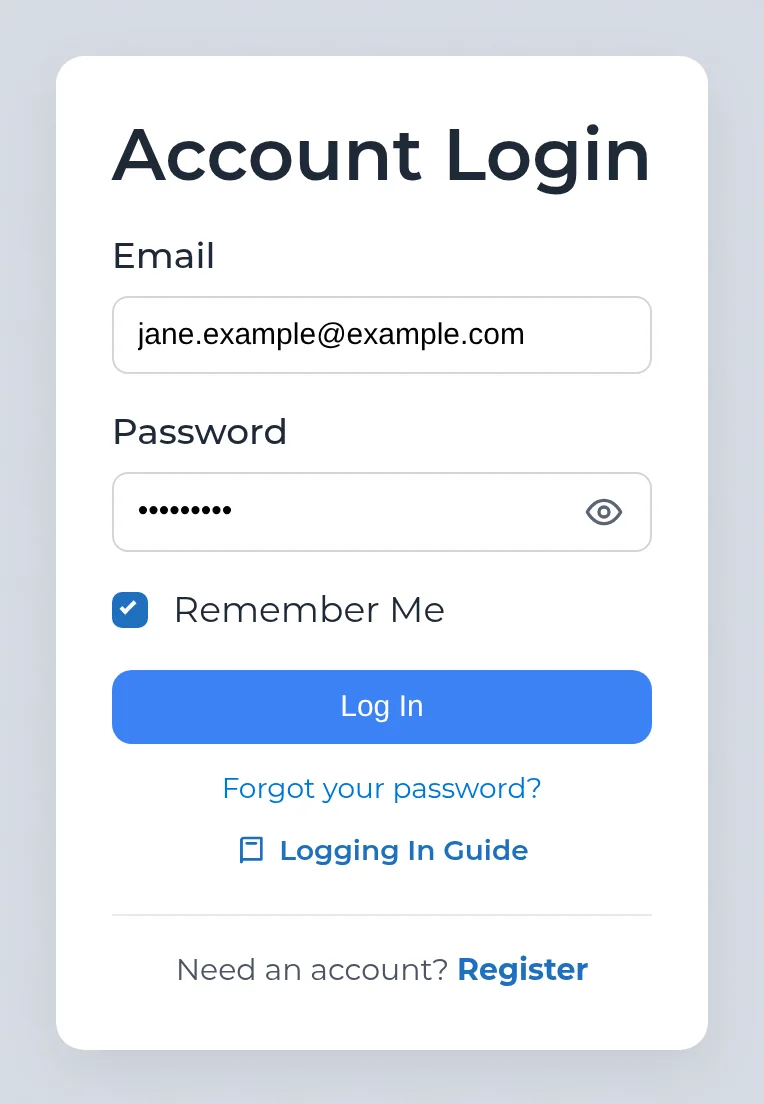
At the top of any page, click Login in the 1 Login | Register button. You can also go straight to ambcirclefriends.com/account-login.
 1
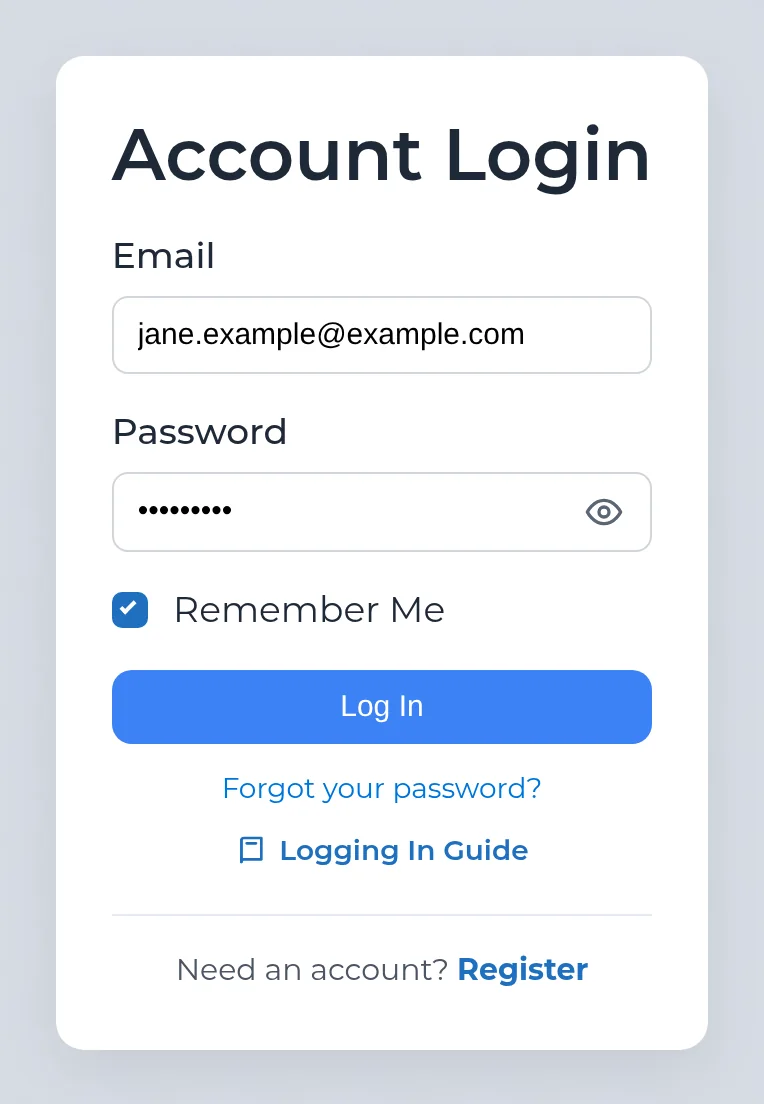
 1234
Click 1 Forgot your password? under the Log In button.
 1
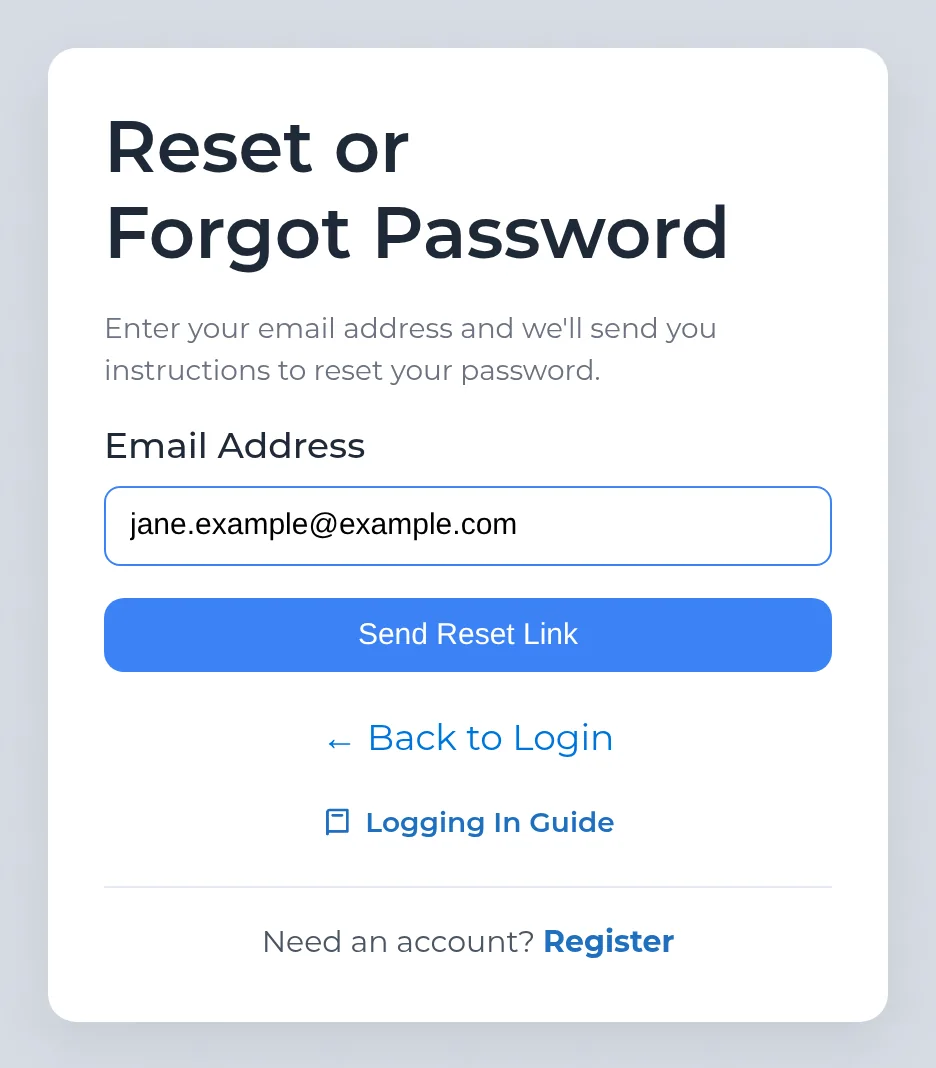
Enter 1 the email address you log in with and click 2 Send Reset Link. The page confirms: “Password reset instructions have been sent to your email.”
 12
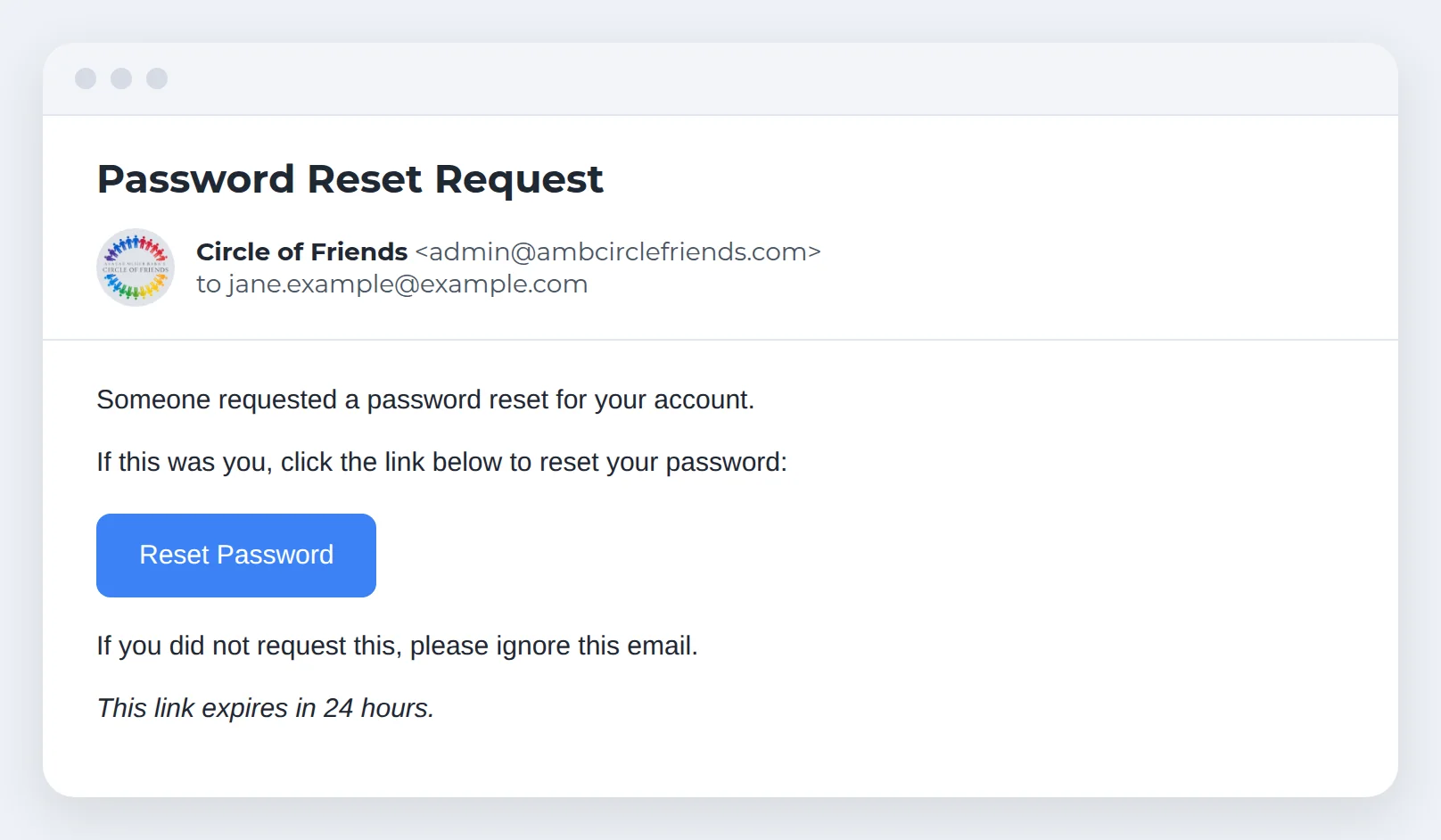
You’ll receive an email titled “Password Reset Request”. Click 1 Reset Password. The link works for 24 hours; if it expires, ask for a new one. If you can’t find the email, check your spam or junk folder.
 1
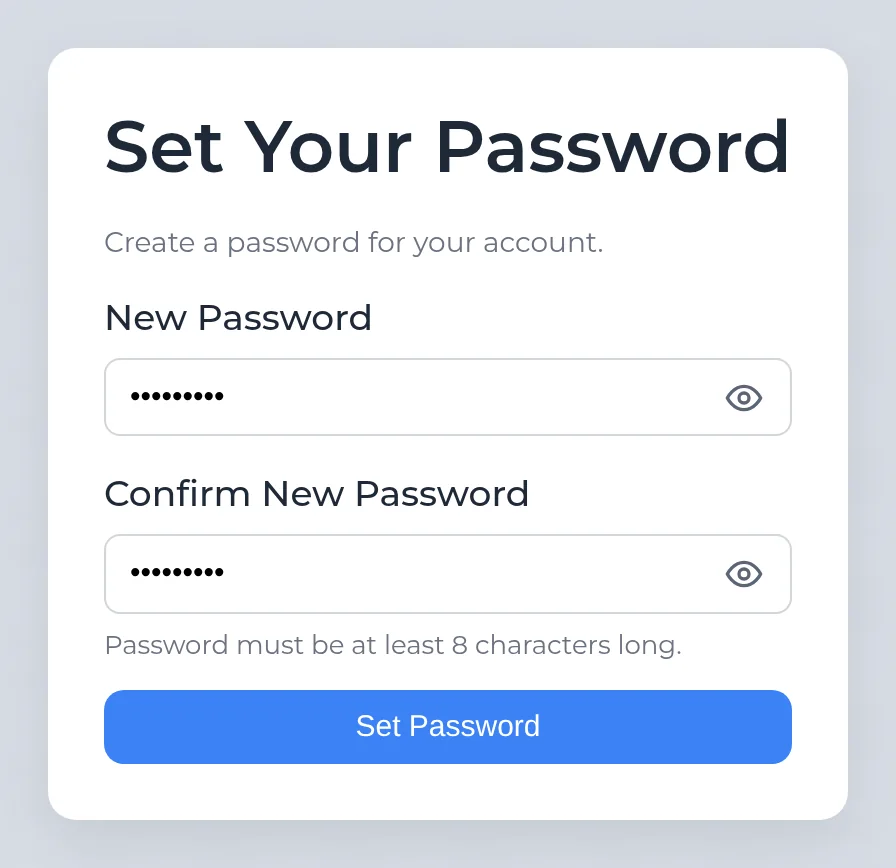
Enter a 1 New Password of at least 8 characters, type it again in 2 Confirm New Password, then click 3 Set Password. Then log in with your new password.
 123
Click 1 Logout at the top of any page when you’re finished, especially on a shared computer.
 1